
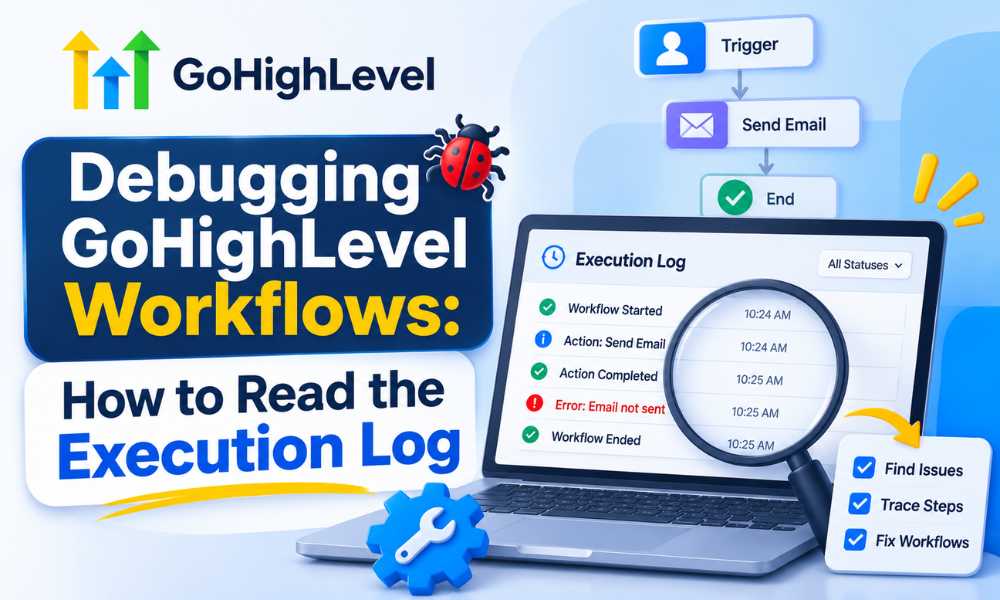
Debugging GoHighLevel Workflows: How to Read the Execution Log
A workflow that does not fire is not mysterious. It left a record of exactly what it did and where it stopped, and most people have never opened it.
The execution log is the single most useful screen in GoHighLevel for anyone who builds automations, and learning to read it turns a two-hour guessing session into a four-minute diagnosis. Here is what it shows and how to work through a failure methodically.
Where to look, and what you are looking at
Open the workflow, switch from the builder to the execution or history view, and you get a list of every contact that entered, when, and what happened to each step. Click a single run and you see the step-by-step path that contact took.
Three columns do most of the work:
- Status — completed, in progress, failed, or skipped. In-progress runs that have been in progress for days are usually stuck on a wait step with a condition that will never be met.
- Step path — which branch the contact went down. This is where you discover a filter is doing something other than what you intended.
- Timestamp per step — when each one executed. Gaps here reveal wait steps, queueing and throughput limits.

Work the problem in this order
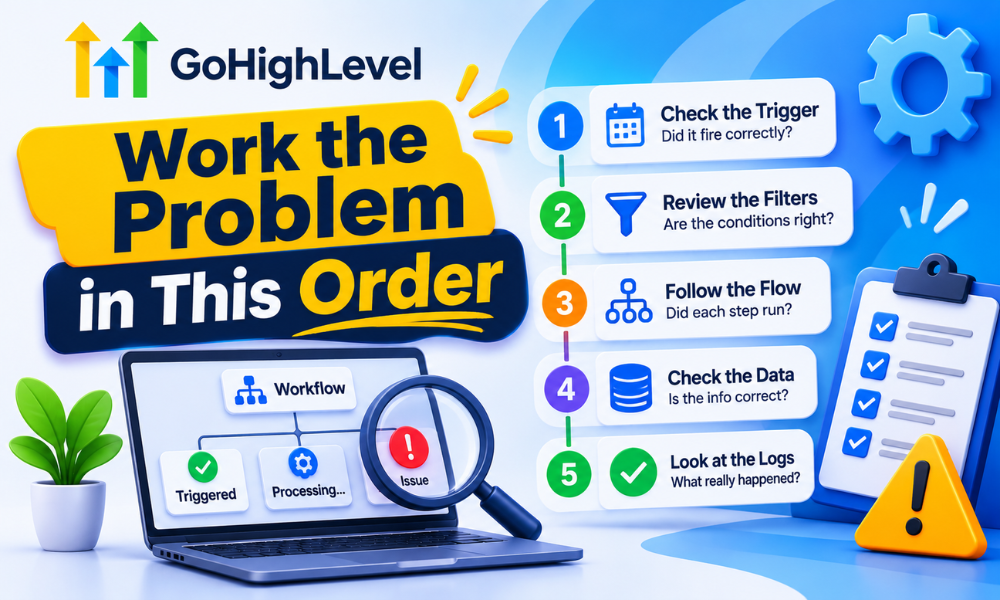
Resist the urge to open the builder and start changing things. Diagnose first, in this sequence.
- Did the contact enter at all? If they are not in the log, the problem is the trigger, not the workflow. Nothing inside it can be at fault.
- Which step did they stop at? Click into the run. The last executed step is where your attention goes.
- Was that step skipped or failed? These mean different things. Skipped is usually a condition evaluating false; failed is usually a missing value, a bad integration, or an empty required field.
- What data did the contact actually have? Open the contact record. Nine times in ten the condition was right and the data was empty.
- Does it reproduce? Make a test contact that matches the same shape and run it through.
Only then change something, and change one thing.
The failures you will actually meet
The contact never entered
The trigger fired on something subtly different from what you pictured. A form submission trigger tied to the wrong form. A tag trigger where the tag has a trailing space. A status trigger on a pipeline the contact is not in. Check the trigger’s filters against one real contact that should have qualified and did not.
The other version of this: the contact entered once, months ago, and re-entry is disabled. Workflows have a setting for whether a contact may run through more than once, and the default is frequently not what you want for an ongoing nurture.
Stuck in progress forever
A wait step waiting for an event that already happened, or a condition on a field nobody fills in. Wait-until steps need a timeout branch; without one, the contact sits there indefinitely and quietly inflates your in-progress count.
The step ran but nothing arrived
The log says sent and the customer says nothing came. For SMS this is usually registration or filtering rather than the workflow. For email it is deliverability — the send succeeded, the inbox rejected it. Our piece on why open rates drop is the place to start on that one.
Everything fires twice
Two triggers on one workflow both matching, or two separate workflows doing the same job. The second is more common than anyone admits, usually because somebody built a replacement and never switched the original off. Search your workflow list for near-duplicate names before assuming the logic is wrong.
Conditions behaving oddly
Empty is not the same as zero, which is not the same as false. A condition checking “is not equal to yes” will pass for contacts where the field was never set, which may well not be what you meant. When a branch takes the wrong path, look at the raw field value on a real contact rather than at the condition.

Making future debugging easier
A few habits cut diagnosis time dramatically, and all of them are free:
- Add an internal notification on the failure branch of anything important. Silent failure is the expensive kind.
- Give every branch a name that says what it is for, not “Branch 1”.
- Put a timeout on every wait-until step, with somewhere sensible for the contact to go.
- Keep one test contact per workflow with a recognisable name, and run it after every change.
- Never edit a live workflow at 4pm on a Friday. The log is only useful if somebody is reading it.
The deeper set of design mistakes behind most of these — and how to avoid building them in the first place — is in our write-up of the automation mistakes that kill reply rates.
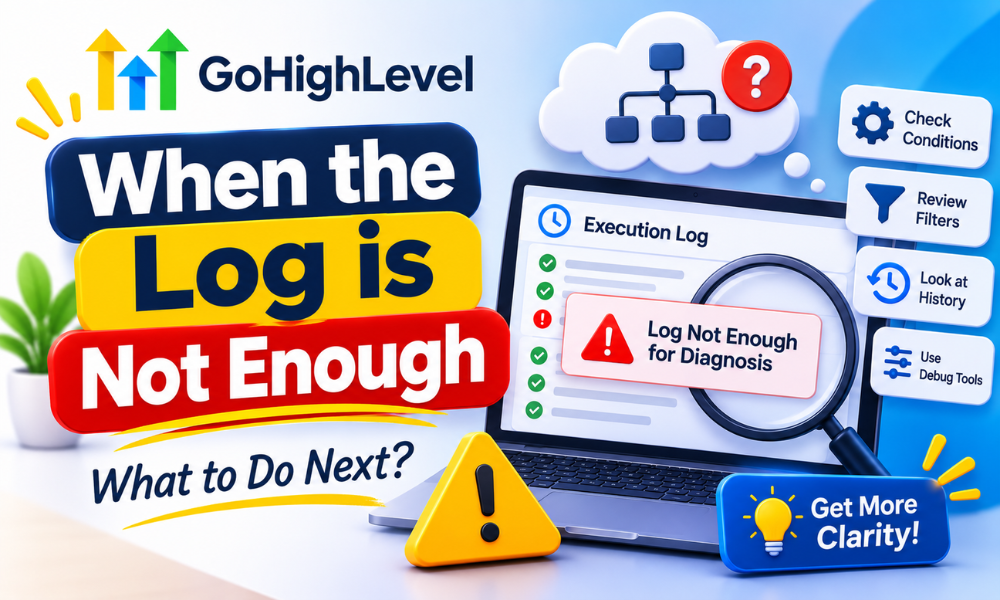
When the log is not enough
Sometimes the workflow is fine and the problem is upstream: a form posting to the wrong location, an integration that silently stopped authorising, a webhook returning an error nobody caught. At that point you want the request-level view rather than the workflow view.
If an external system is involved, check what it received rather than what you think you sent, and read the raw request rather than trusting your own mental model of it.
Frequently asked questions
Why did my workflow not trigger for one specific contact?
Open the execution log and search for them. If they are absent, the trigger conditions excluded them — compare their record against each filter in turn. If they are present but stopped early, the log names the step. One of those two things is always true.
How long does GoHighLevel keep execution history?
Long enough for practical debugging, but not forever, and busy workflows roll off faster. If you are investigating something that happened weeks ago, screenshot what you find before you start changing things — the evidence can disappear while you work.
Can I re-run a workflow for a contact?
You can usually add them again manually, but check the re-entry setting first or nothing will happen. Be careful re-running anything that sends: the contact does not know you are testing, and will receive every message again.
What does a skipped step mean?
The workflow reached it and decided not to execute it, almost always because a condition evaluated false. It is not an error. Look at the contact’s actual field values at the moment it ran, not at the values now — somebody may have filled the field in since.
Where to start
Pick the workflow you trust least and open its execution log. Count how many contacts are sitting at in-progress. If that number is large and the oldest is weeks old, you have found a wait step with no timeout, and that is an afternoon’s fix that will recover real leads.
Then add a failure notification to your most important workflow, so the next problem announces itself instead of being discovered by a customer. If your account has reached the point where nobody is sure what is running any more, a GoHighLevel automation specialist can audit the lot — or book a free GoHighLevel consultation and our GoHighLevel automation experts will go through the logs with you.